
Product overview
Receive retailer orders directly in the Admin portal.
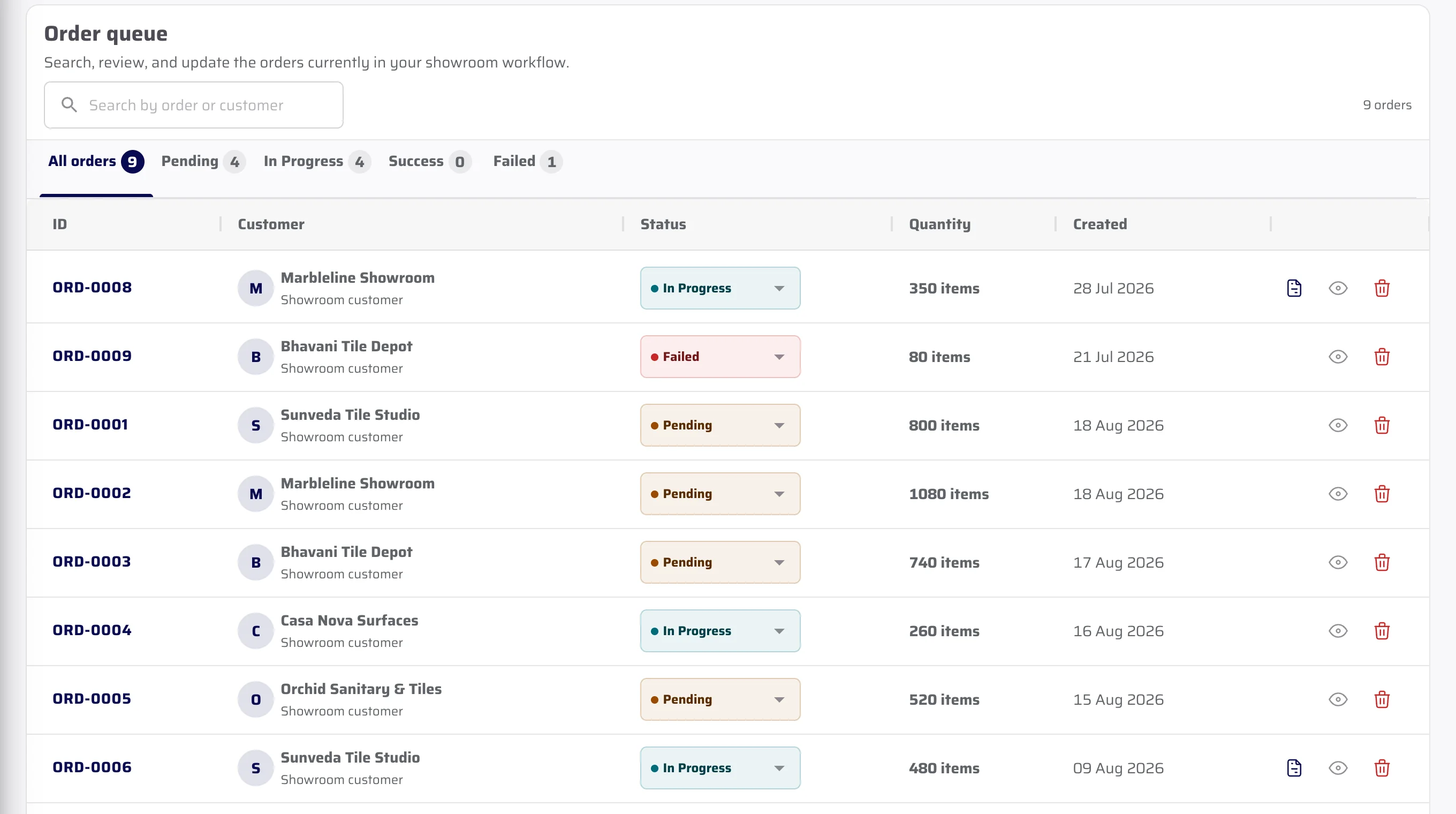
Maintain your Product Catalogue, set customer-wise price lists and receive orders with products and quantities. Your team can then prepare documents, record payments, check reports and download accounting files.
Product Catalogue
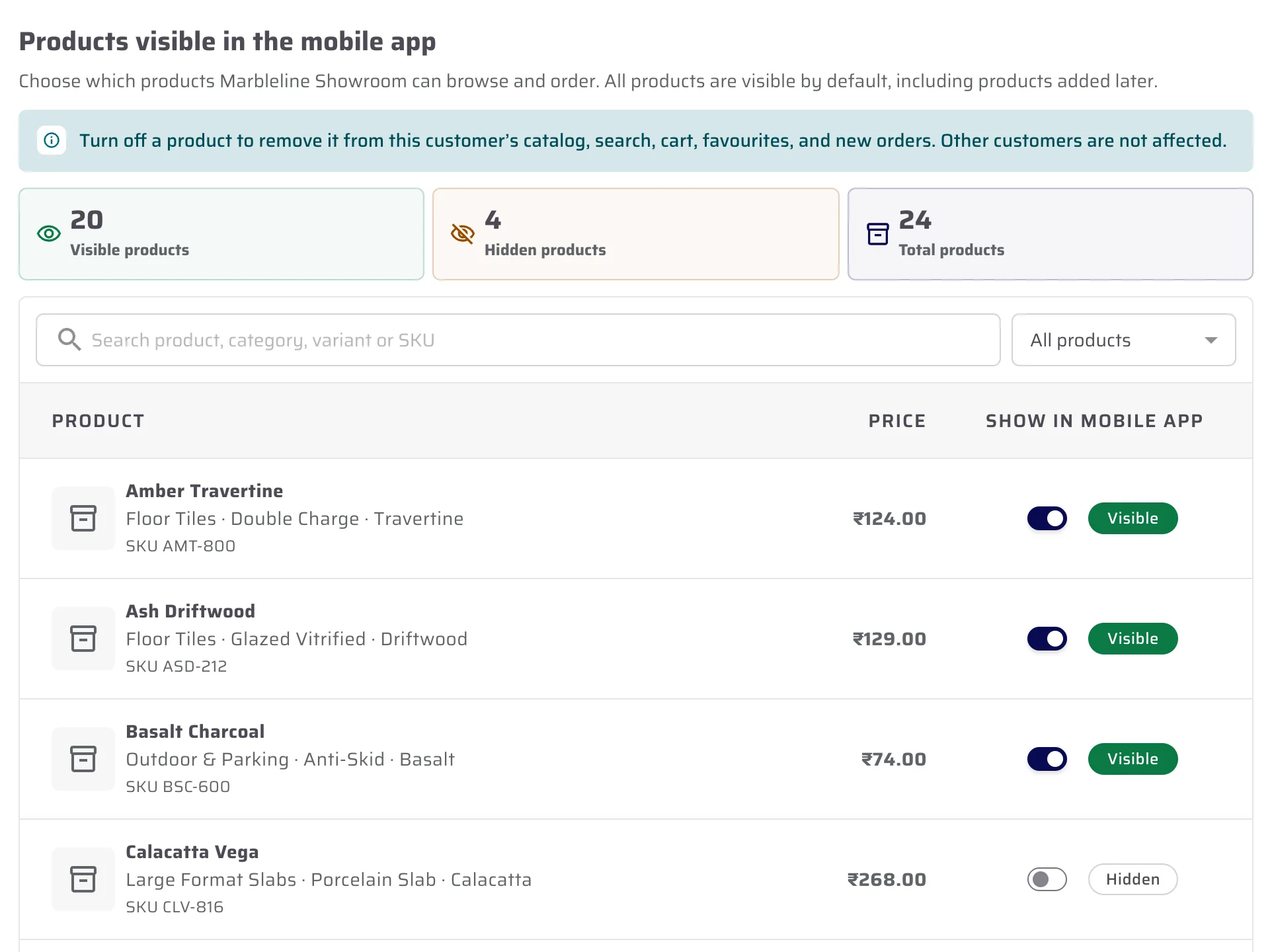
Control which products each customer can see.
Keep products in one Product Catalogue. Turn a product on or off for one customer without changing what other retailers can see.
- Keep product records in one catalogue
- Apply a visibility change to one customer
- Leave other retailers unchanged
Order to documents
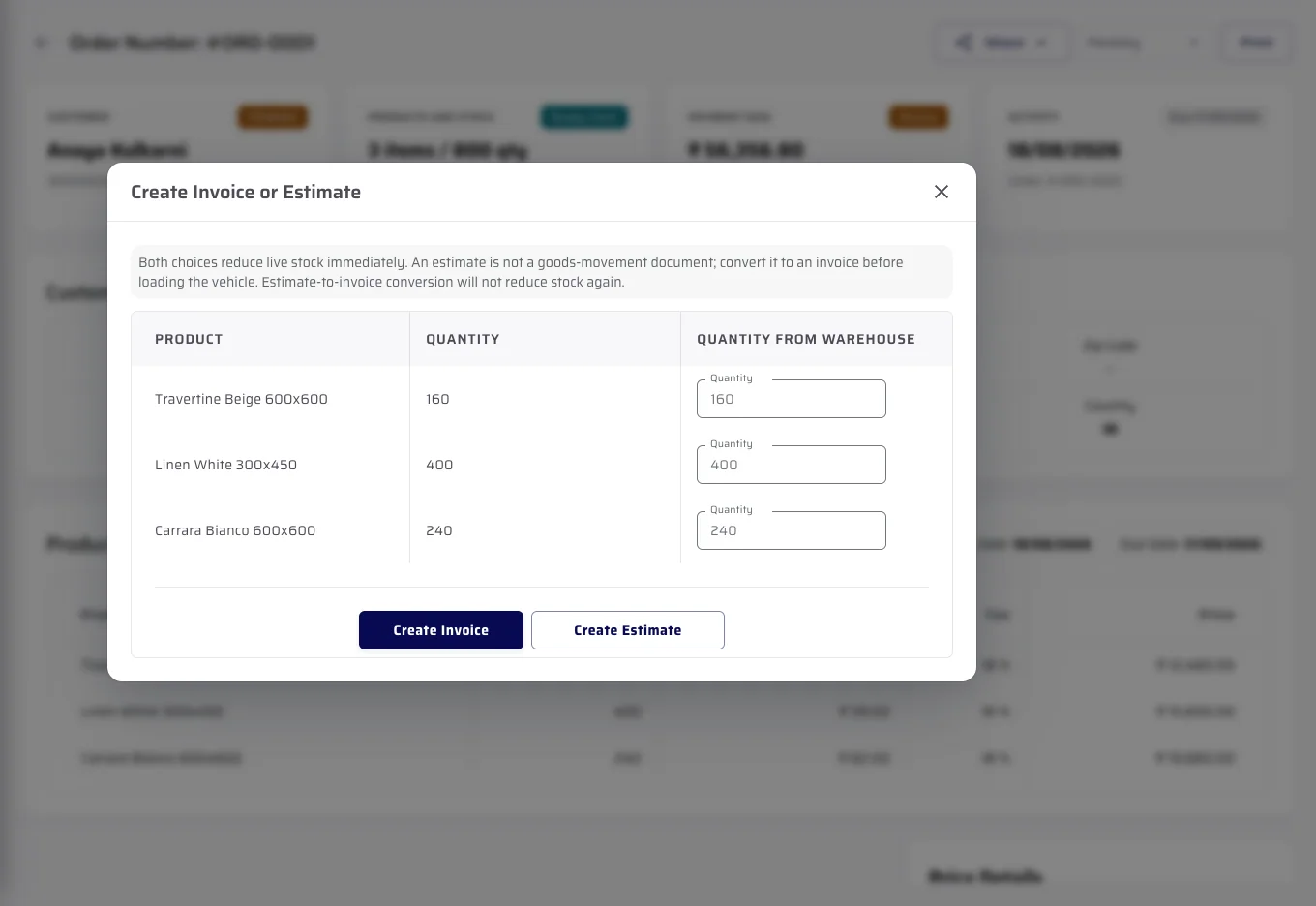
Convert the order into an Estimate, Challan or Invoice.
The customer and ordered products stay together. Your team reviews the order before creating the next business document.
- Customer and products arrive together
- Review stock and payment details
- Create the next document from the order
Reports and files
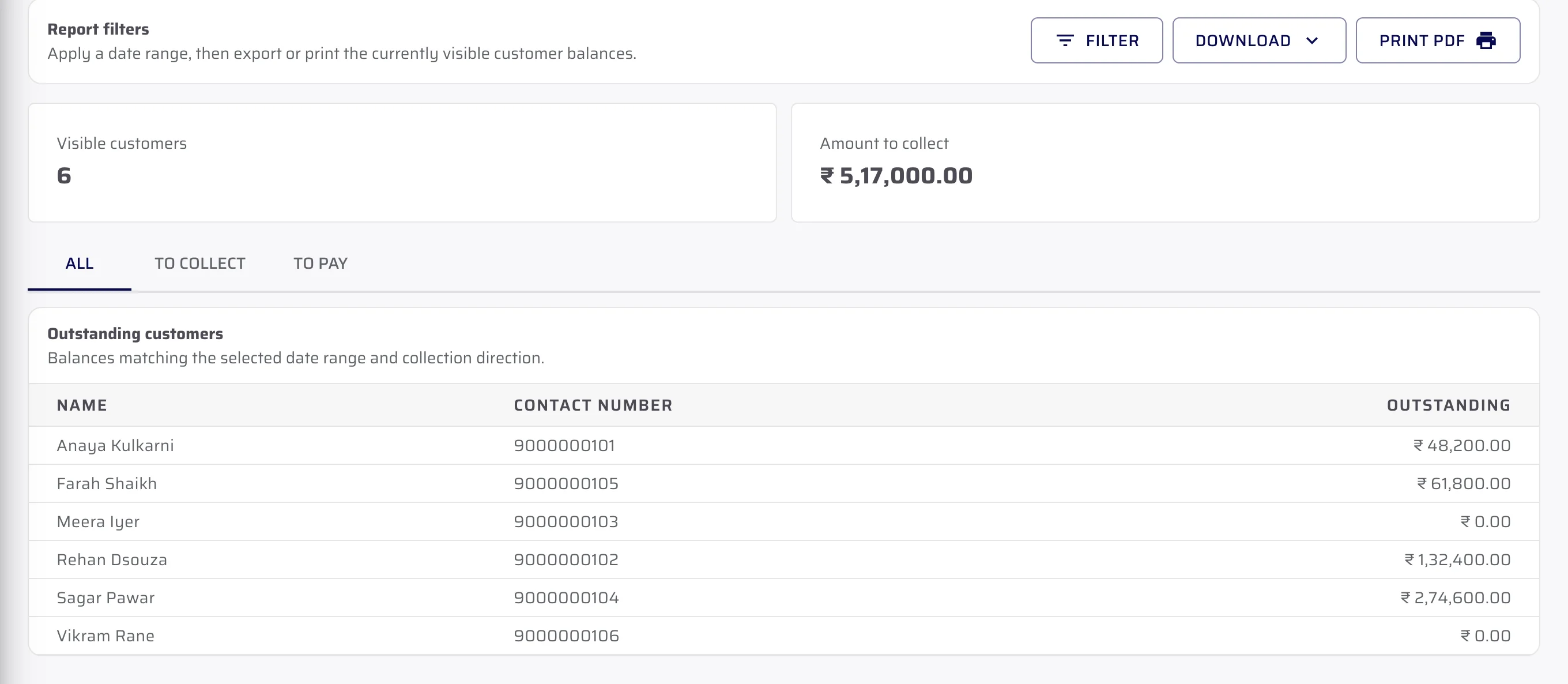
Check the report, then download the file you need.
Check customer outstanding, stock, GST and invoice profit reports. Download Tally-ready, Miracle-compatible, Excel or CSV files where supported.
- Filter customer balances and recorded transactions
- Print or download the visible report
- Build Tally XML, Miracle, Excel or CSV output where supported
Important limits
What is not included.
We explain the feature first, then state the related limits clearly.
Questions about this
Answers before the demo.
Who is CeramicPortal built for?
CeramicPortal is built for ceramic and tile wholesalers or distributors. Their retailers use the mobile app, while the wholesaler team works in the Admin portal.
Does the retailer use the wholesaler’s portal?
No. The retailer uses the mobile app. The wholesaler team reviews the order in the Admin portal.
Does CeramicPortal replace accounting software?
No. It prepares supported files that a person can import into their existing accounting software.
See CeramicPortal for your retailer business.
Bring your retailer count, Product Catalogue, price lists, branches and godowns. We will show only verified product behaviour.