
Choose a supported room
Use a prepared compatible room and the views available in your Studio workspace.
Help a customer move from a tile sample to a room selection. Explore compatible tiles on supported walls and floors, then review the quantities and proposal.
Ceramic Studio is part of the CeramicPortal business workflow. Access and available tools depend on your account.
MAKE THE SELECTION VISIBLE
A wall and a floor are different choices. Start with the intended surface, then compare the tile selection in the same room view.
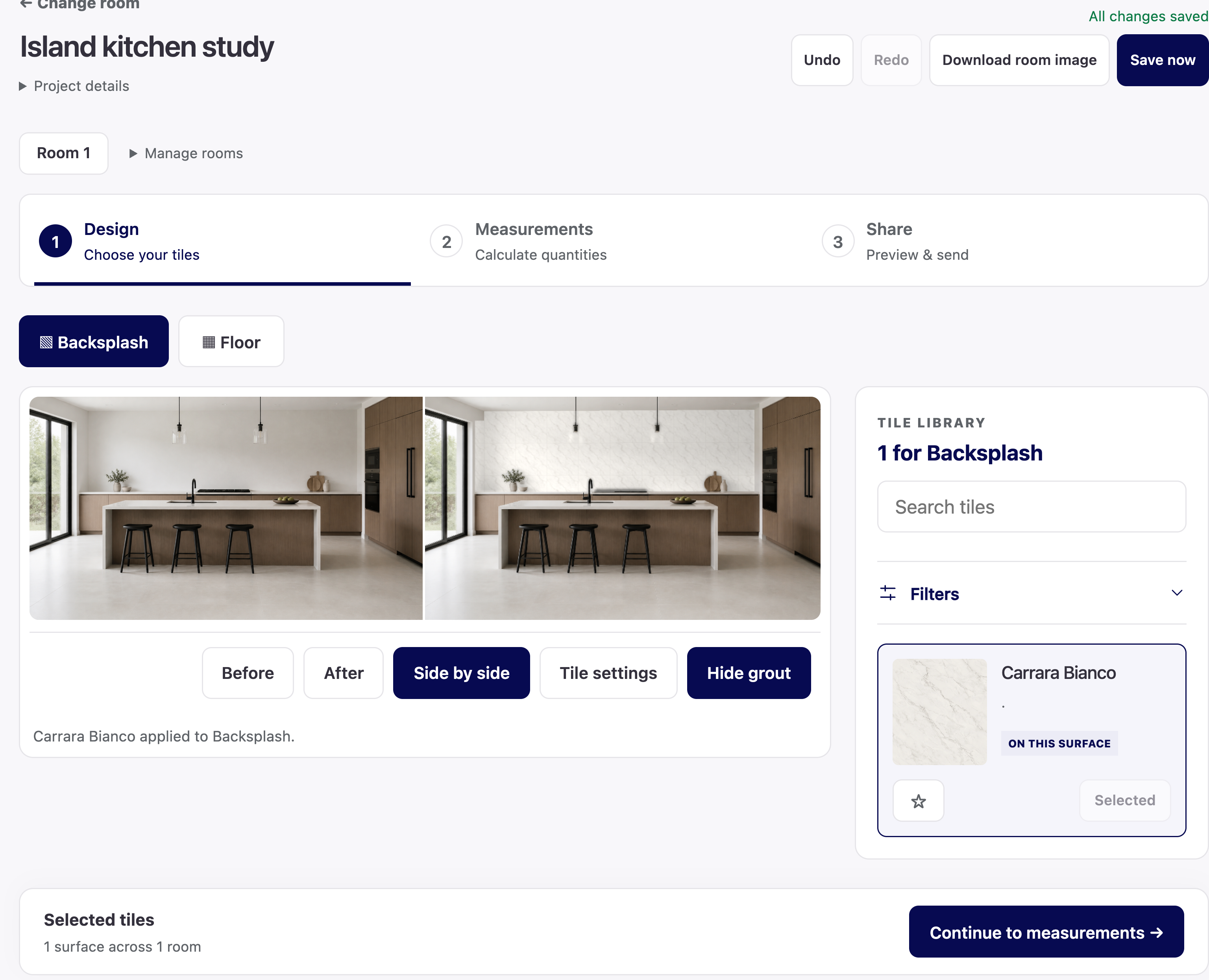
Use a prepared compatible room and the views available in your Studio workspace.
Apply a compatible tile texture to the intended surface. Review the pattern and available tile settings.
Use the supported comparison controls to review the change with the customer before moving on.
FROM A VISUAL CHOICE TO A REVIEWED PROPOSAL
The room view helps the conversation. Measurements and saved product data support the quantity decision.
Understand tile quantitiesConfirm the room measurements, selected product, selling unit, pack coverage and any extra allowance.
Review the calculated quantities and available proposal PDF. Confirm customer and price details where required.
Where enabled, open the selection in the Portal’s editable sales form. Review and save the business document through the normal workflow.
USE THE PREVIEW WITH CONFIDENCE
Use it to discuss a selection. Confirm the physical tile and the commercial details before the final sale.
Screen colour, room lighting, texture source and scale can affect appearance. A preview does not guarantee the installed result.
Ask which prepared rooms, tile textures and project tools are available for your business. Custom-photo availability should be confirmed in the walkthrough.
A room preview or proposal is not a stock reservation, posted invoice or recorded payment. Those actions belong to the relevant business workflow.
We can walk through the supported room view, the quantity review and the next sales step.