
Payments, collections & expenses
Know what is due. Record what was received.
Follow customer balances, organize collection work and record actual receipts. Keep expenses and supplier payments clear alongside the daily money work.
Start with the customer and the amount still due.
Inspect the statement before collecting. The opening balance, invoices, credits and actual receipts explain the current amount.
Customer statement
Understand what makes up the amount due.
- Opening balance
- The balance carried into the account
- Invoices
- Recorded sales and their amounts
- Receipts and credits
- Money received and applicable account credits
- Remaining balance
- The amount still due in the selected scope
Keep the customer and period in view.
Read the entries behind the balance before planning a collection or correcting a record.
- Customer
- The account being reviewed
- Period
- The statement or report scope
- Balance
- The records behind the pending amount
A receipt records money. An allocation explains where it goes.
Record the amount received, payment date and receiving account. Check how that receipt reduces invoices or becomes available credit.
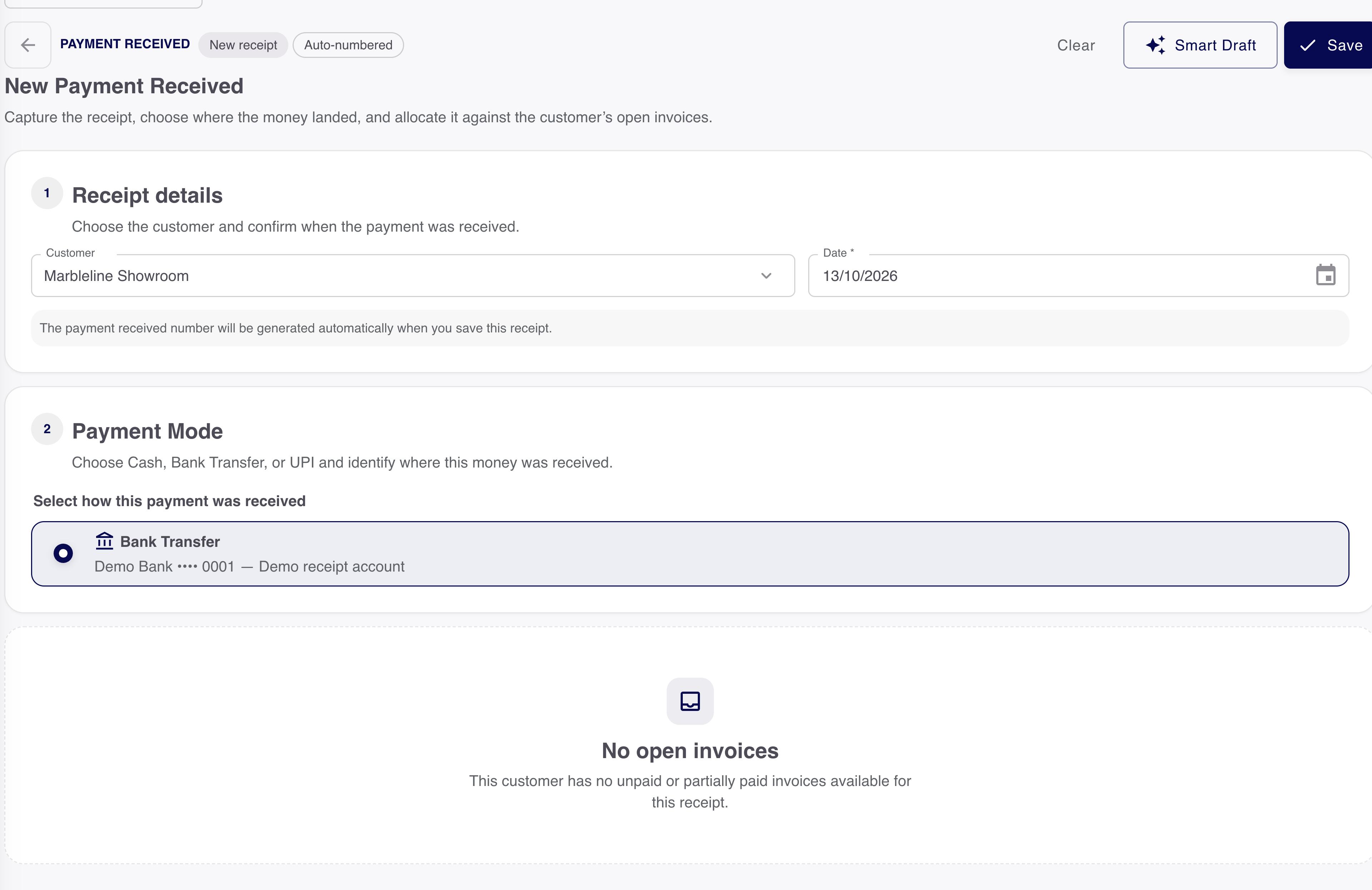
First, record the receipt
The money that actually arrived.
- Customer
- Whose account received the credit?
- Amount & date
- How much was received, and when?
- Receiving account
- Where was the money received?
Then, review its use
Where does that amount go?
Invoice allocation
The part applied to a selected invoice reduces that invoice’s pending amount.
Available customer credit
An eligible unallocated amount remains on the customer account for later review and use.
Workflow explanation. CeramicPortal records money received outside the software; this is not a payment gateway.
Read a return on both sides.
Returned goods and customer credits have different effects. Review the supported stock action, refund or retained credit in their own records.
- Goods
- The returned product, quantity and stock outcome.
- Credit
- The amount available against the customer account.
- Refund
- A separate money movement when it actually happens.
Plan a collection day. Keep the result with the customer.
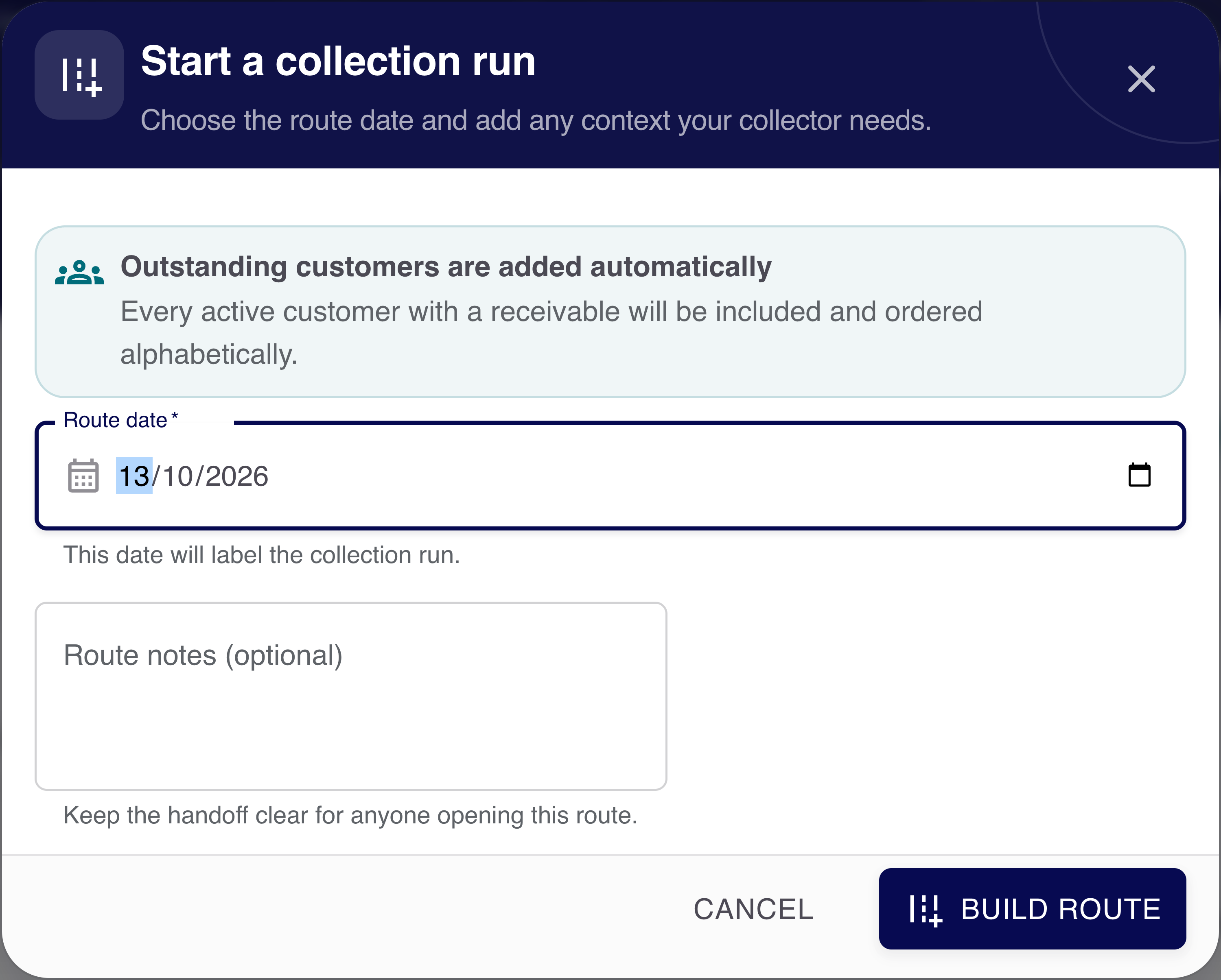
Create a run for the date your team will collect. Use notes for the area or handoff; review current dues and record full or partial payments as they happen.
A dated collection run
Choose the day your team will collect.
Use a run for a weekly visit, month-end review or another date that fits the business. The run is created for that date; this does not promise an automatic recurring scheduler.
- PrepareDate, route notes and current customer dues.
- RecordActual amount, payment date and receiving account.
- ReconcileReview collected and remaining amounts, then close the run.
If a balance changes elsewhere, review the current due before recording another payment.
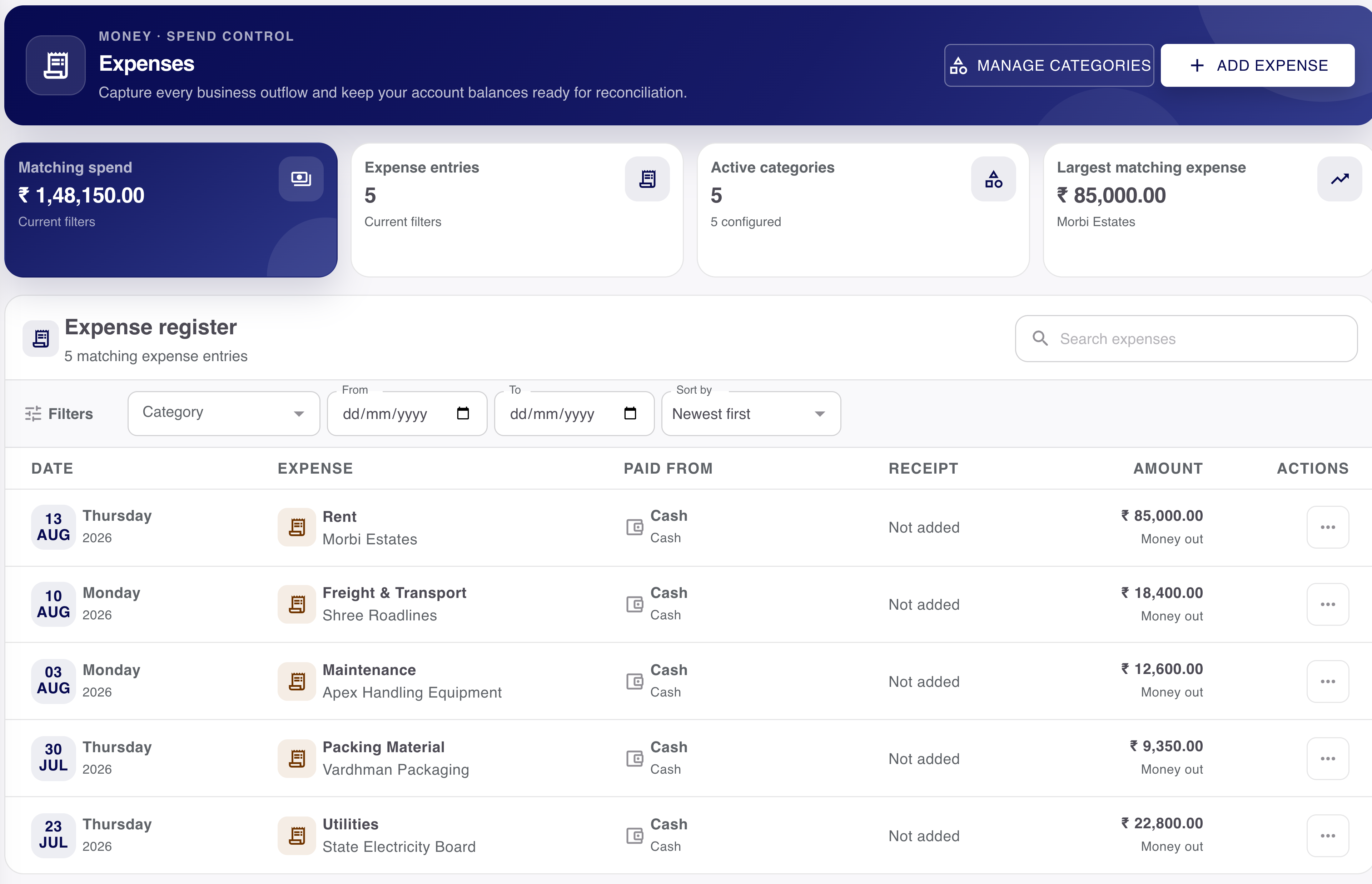
Keep daily expenses visible too.
Record business spending with a date, category, payee, amount and payment context. Customer receipts, supplier payments and expenses have different purposes.
- Customer receipt
- Money received from a customer, with its allocation or credit.
- Supplier payment
- Money paid in the vendor relationship.
- Expense
- A business cost with its category, date, payee and amount.
Want to see this with your business workflow?
Book a product demo